
Why am I seeing security warnings?
Windows shows these warnings for software that isn't widely distributed yet. This is normal for custom IT tools like ours. The NADC Remote Support app is safe to install - you're downloading it directly from our secure server while on the phone with our support team.
1
Getting Started
1
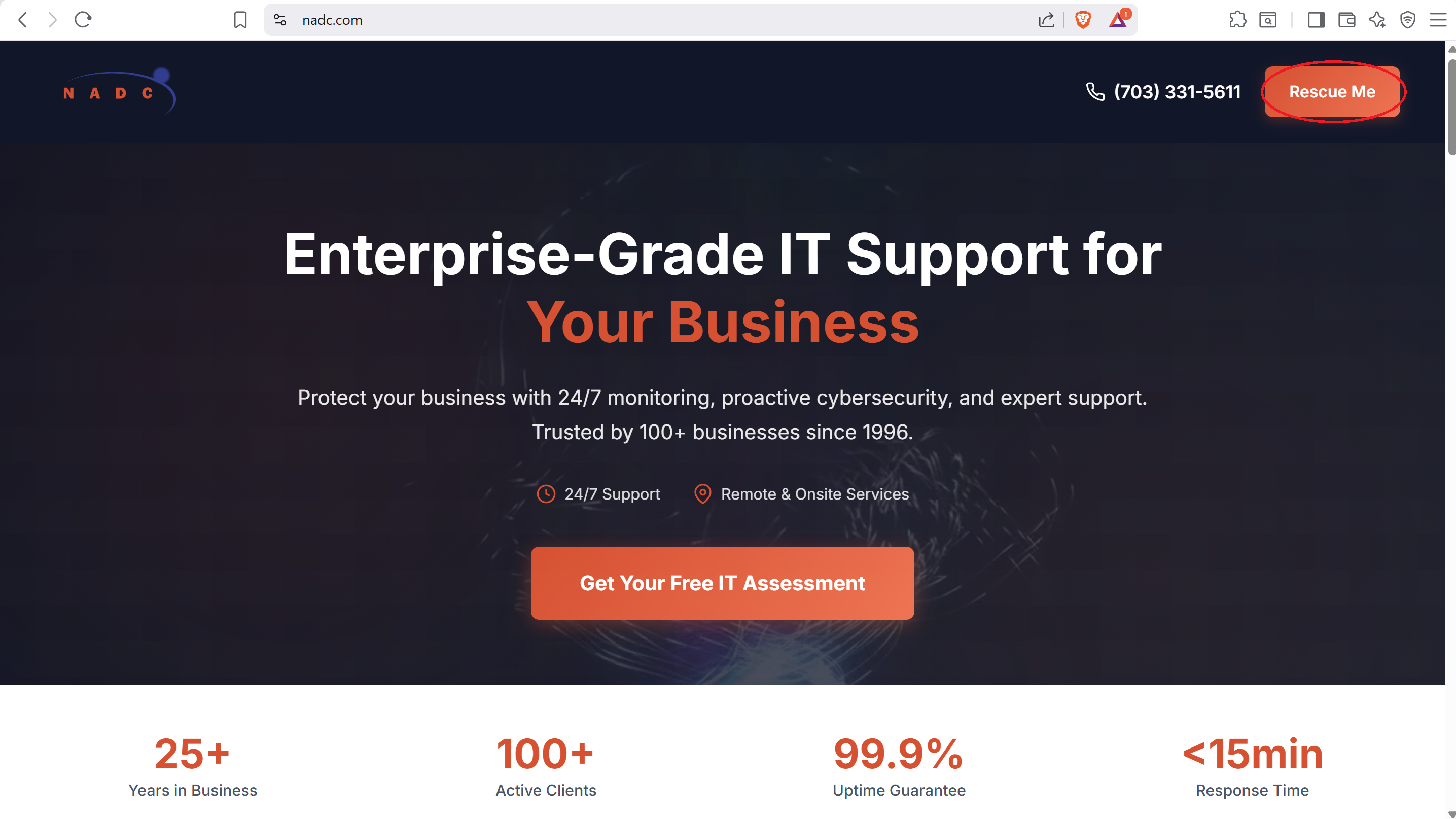
Go to nadc.com and click "Rescue Me"
Visit nadc.com and click the orange "Rescue Me" button in the top-right corner.
2
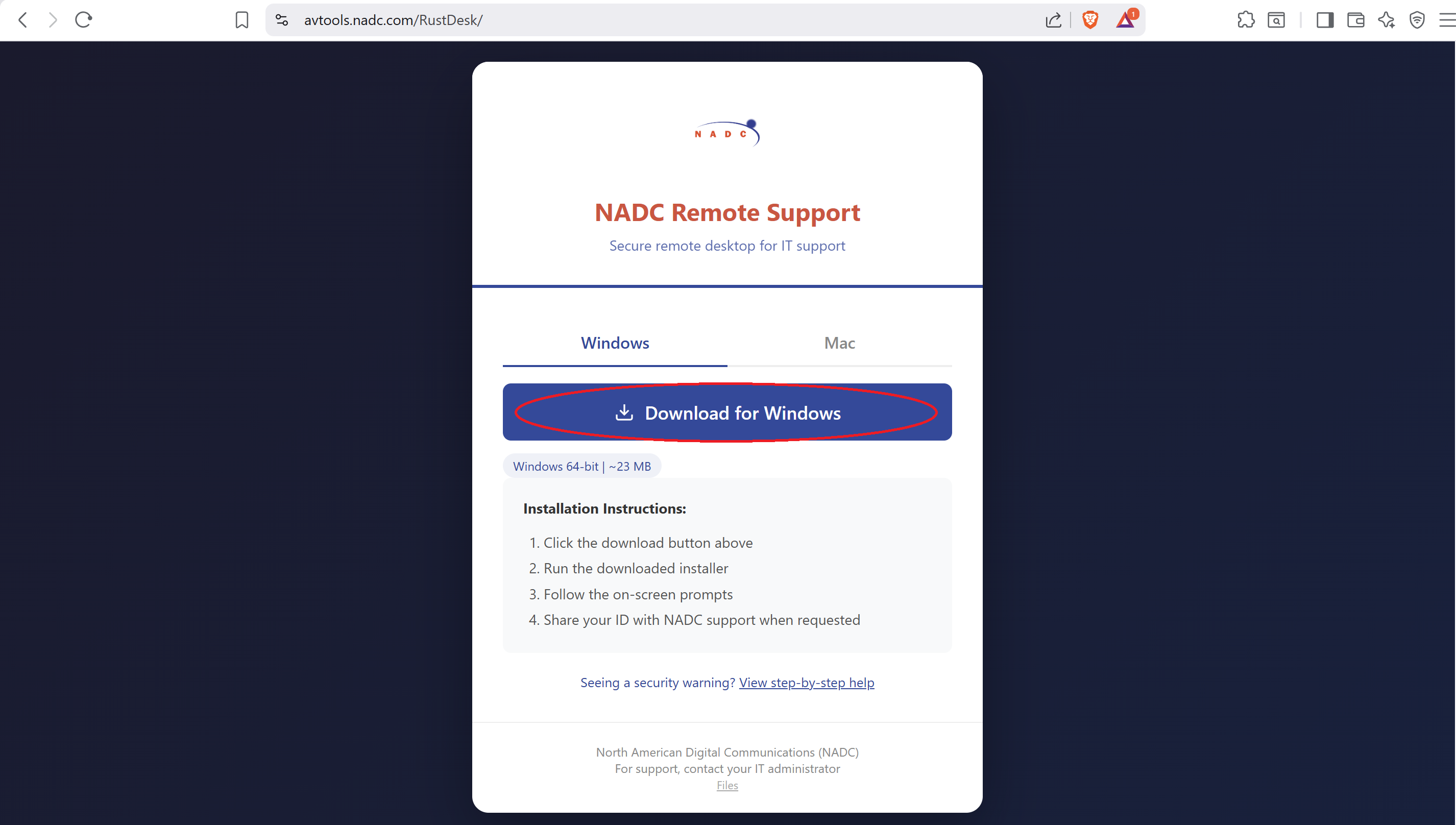
Click "Download for Windows"
On the download page, click the blue "Download for Windows" button.
3
Save the file (Brave/Firefox users)
If a save dialog appears, make sure "Downloads" is selected, then click "Save".
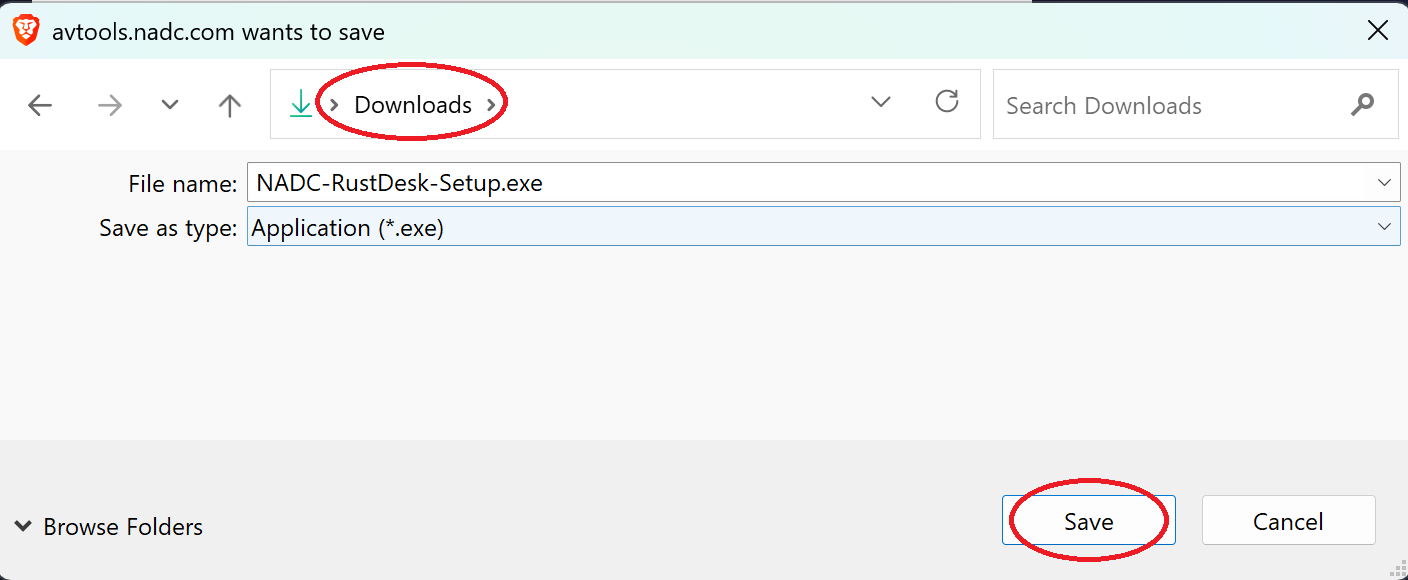
Note: Chrome and Edge users may skip this step - the file downloads automatically.
2
Browser Download Warning (Edge/Chrome)
Note: If your browser downloads the file without showing these warnings, skip to Section 3.
1
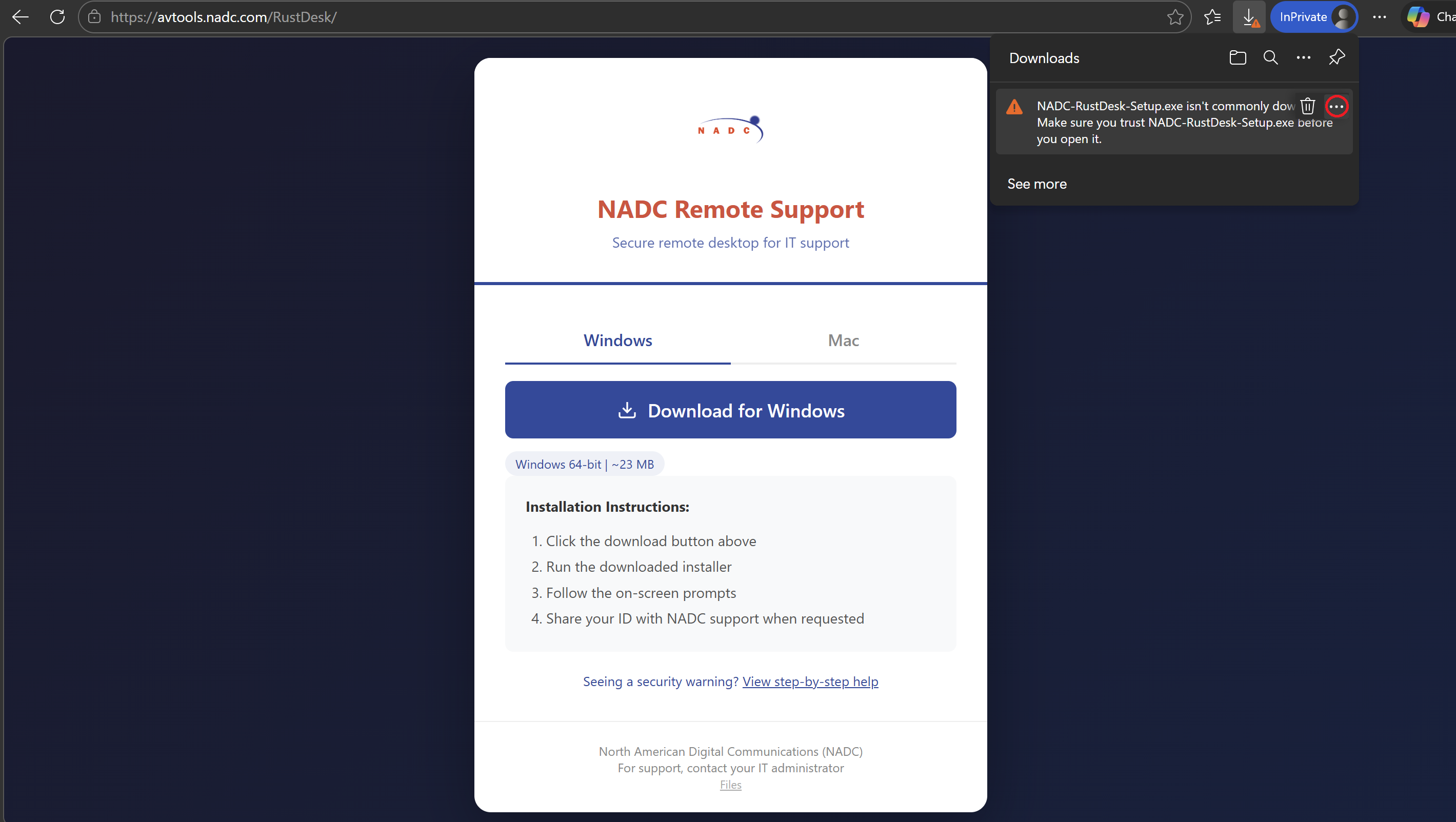
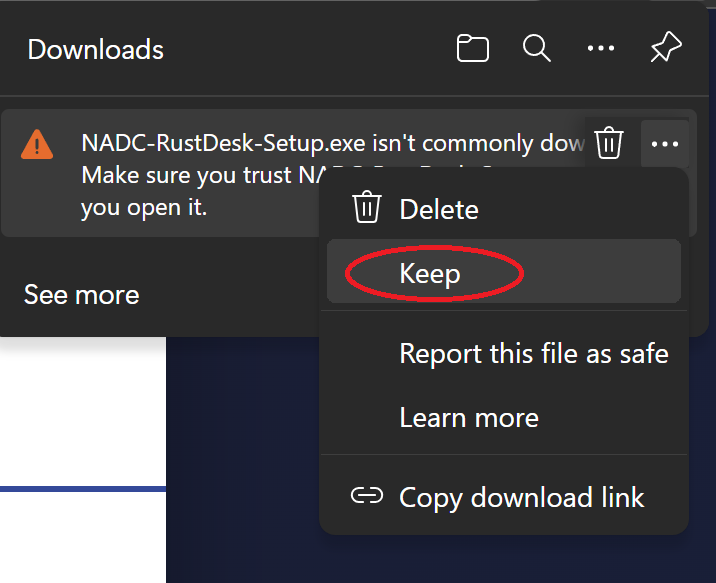
Click the three dots (...)
A warning may appear in the downloads panel. Click the three dots menu icon.
2
Click "Keep"
A menu will appear. Click "Keep" to proceed.
3
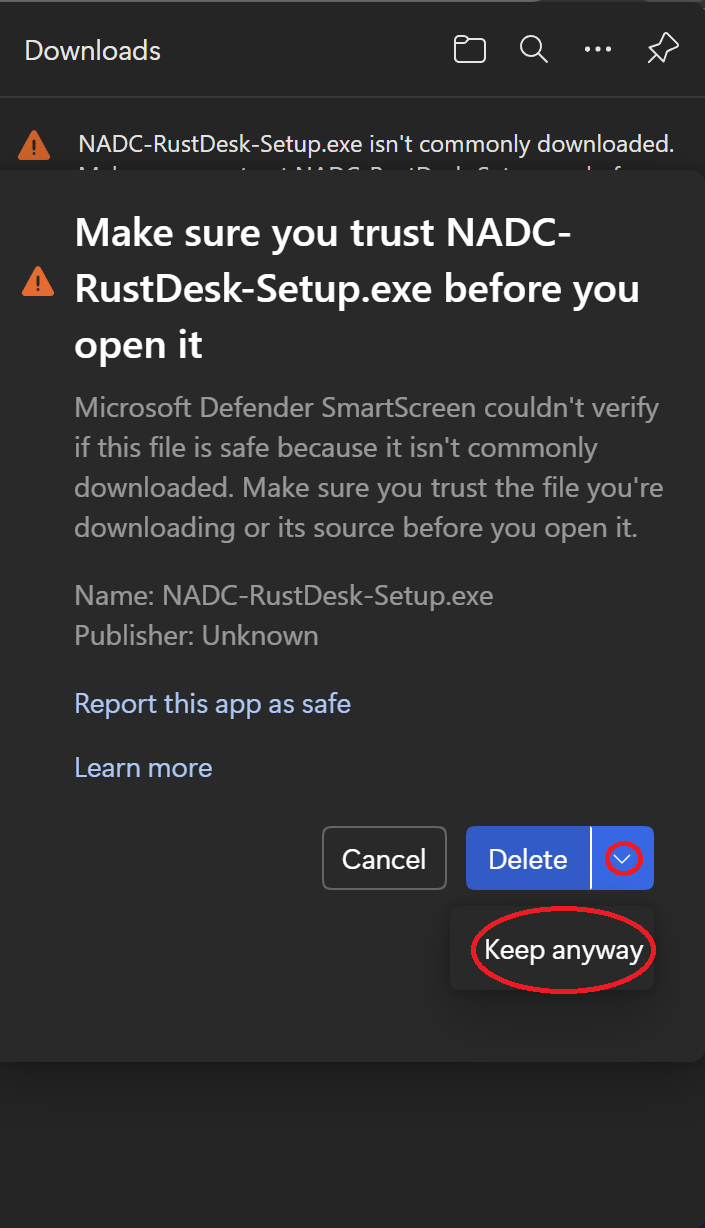
Click the dropdown arrow, then "Keep anyway"
One more confirmation will appear. Click the dropdown arrow next to "Delete", then click "Keep anyway".
3
Windows SmartScreen
1
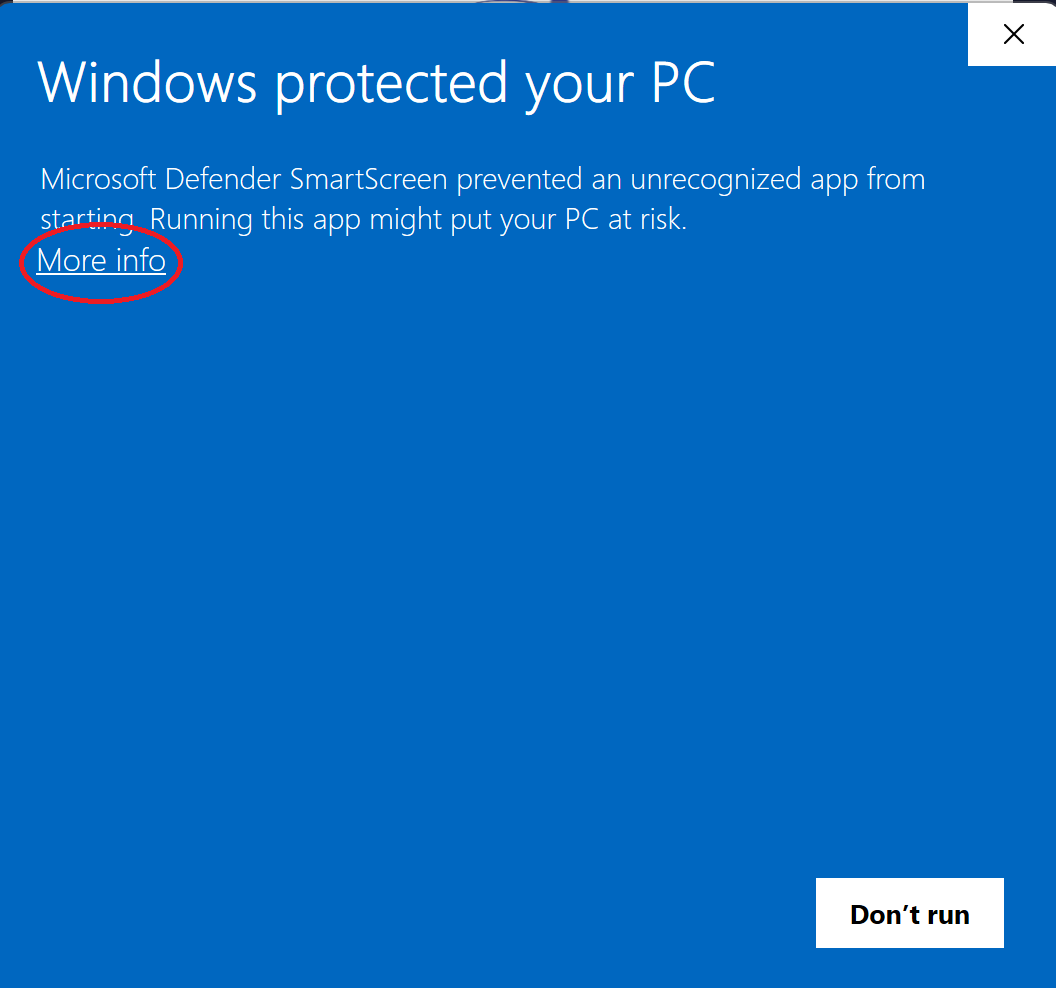
Click "More info"
When you run the installer, a blue Windows SmartScreen popup will appear. Click the "More info" link.
2
Click "Run anyway"
After clicking "More info", you'll see a "Run anyway" button. Click it to start the installation.
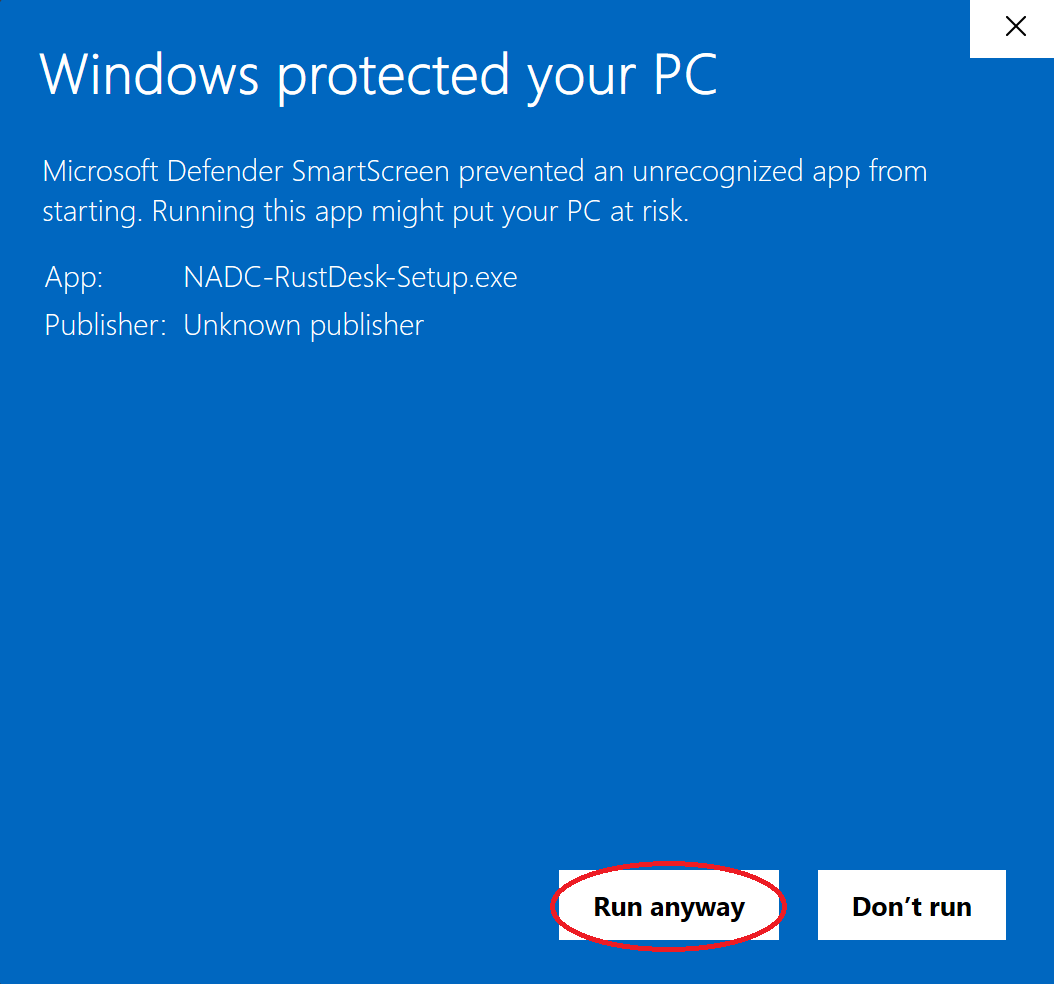
Almost done! After clicking "Run anyway", the installer will start. Follow the on-screen prompts to complete the installation, then share your ID with NADC support.